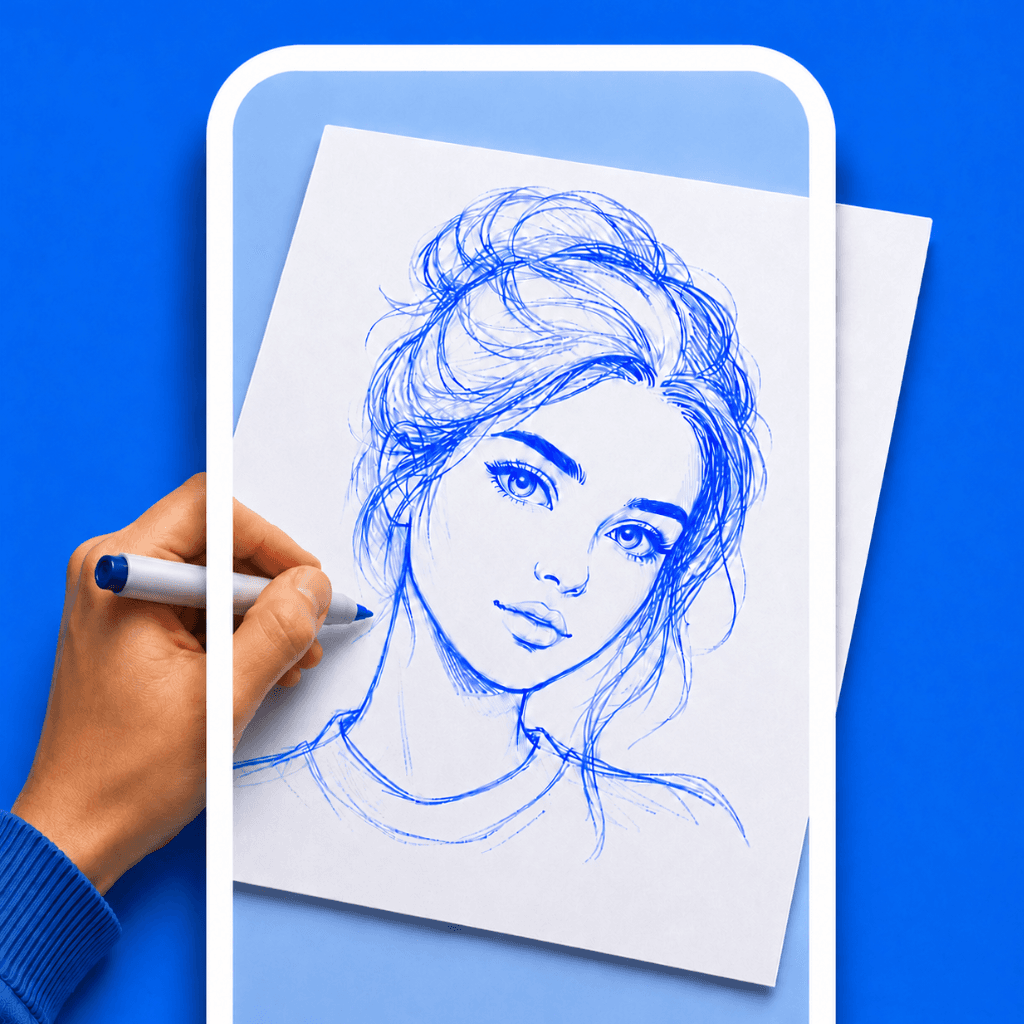

For centuries, master artists used a tool called a Camera Lucida. It was a clever optical device equipped with prisms and mirrors that allowed an artist to look at their drawing paper and see a "ghost image" of their subject superimposed on the page.
It allowed for perfect perspective and proportion. Today, you don't need to spend hundreds of dollars on brass and mirrors. You can use a digital camera lucida app right on your smartphone.
What is a Digital Camera Lucida?
A digital camera lucida utilizes Augmented Reality (AR). Instead of a prism, it uses your phone's camera to capture the live feed of your drawing paper. It then digitally overlays the photo you want to draw on top of that live feed.
By looking at your phone screen, you see your hand, your pencil, your paper, and your reference image all perfectly combined. You simply trace the "ghost image" you see on the screen.
Why the Digital Version is Better
Traditional optical camera lucidas were incredibly difficult to use. If you moved your head even a fraction of an inch, the projection would warp or disappear.
- Zero Eye Strain: With an AR app, you just look comfortably at your phone screen. There is no squinting through a tiny prism.
- Screen Locking: Digital apps allow you to "lock" the image. If you bump your desk, the image stays perfectly aligned to your paper.
- Instant Resizing: You can pinch to zoom the reference image to perfectly fit whatever size canvas you are working on.
The Best Free Camera Lucida App
If you search the App Store for a camera lucida app, you will find options like Da Vinci Eye, which charge premium prices for this utility.
However, if you want a sleek, modern, and completely free alternative, you should use Drawello. Drawello provides flawless camera projection, opacity control, and screen locking without forcing you into a weekly subscription.
Get Your Free Digital Tool
Join the waitlist to turn your phone into the ultimate artist's companion.
How to Set it Up
- Place your phone on a tripod or a tall cup, with the camera pointing down at your sketchbook.
- Open Drawello and import your reference photo.
- Adjust the opacity slider until you can see the white of your paper and the lines of the photo clearly.
- Look through the screen and trace the subject.
It is the exact same optical trick used by masters in the 19th century, upgraded for 2026.